The MedViz Demo: A Seamless Exploration Experience
Designing an in-app guided onboarding to make MedViz accessible to non-expert users
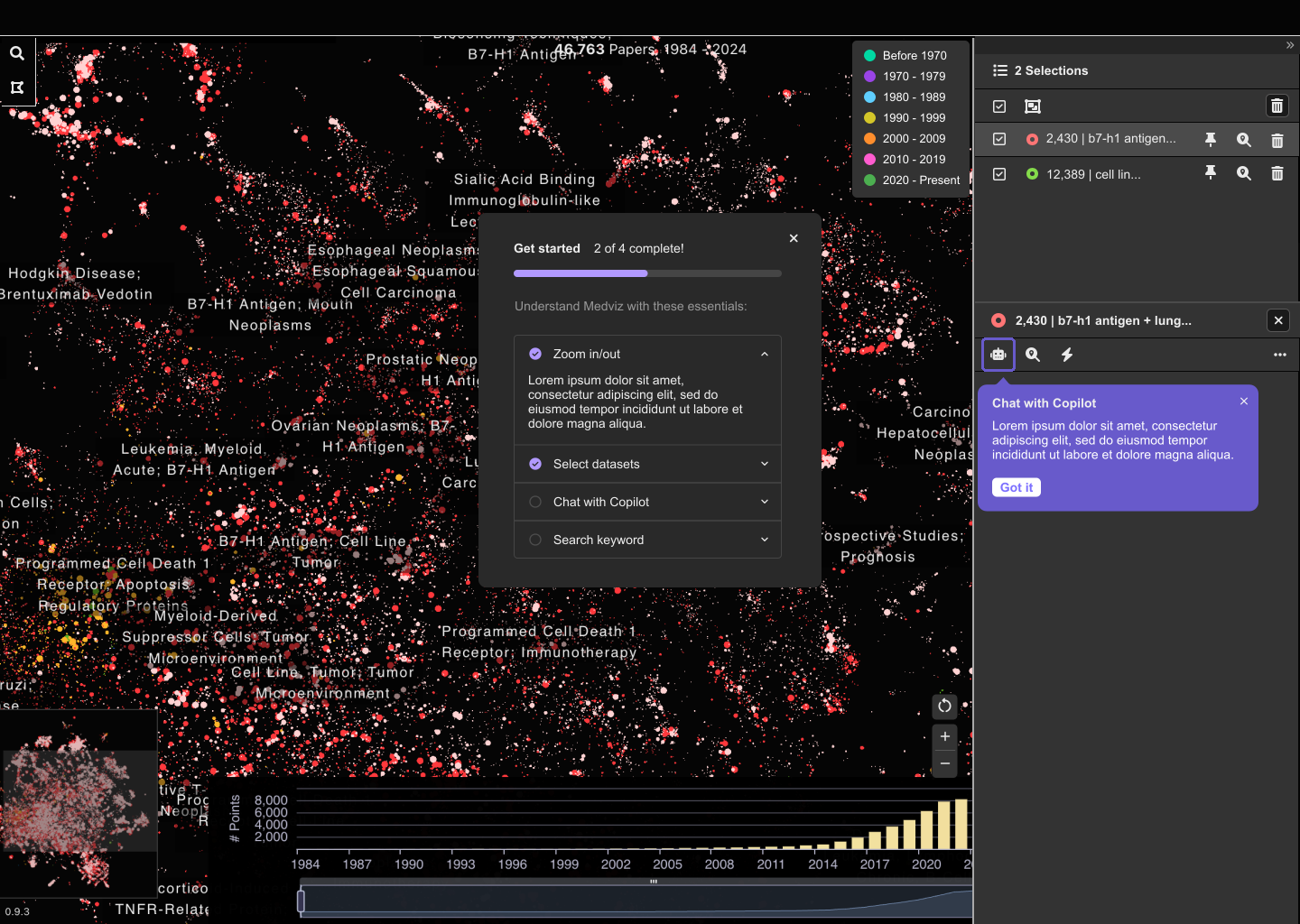
MedViz is a biomedical literature visualization platform that maps millions of research papers by topic and year. Dr. Xu aimed to expand its reach beyond domain experts by introducing it to pharmaceutical companies like Eli Lilly, where users needed the power of MedViz without the steep learning curve.
To bridge that gap, an in-app guided walkthrough was developed: a structured onboarding experience built directly into MedViz that guides new users through its key features step by step. User testing drove every design decision, making a complex research tool immediately accessible to a broader audience.
An interactive onboarding experience that simplifies MedViz for a broader audience, using step-by-step guidance and feature highlights to enhance usability and reduce the learning curve.
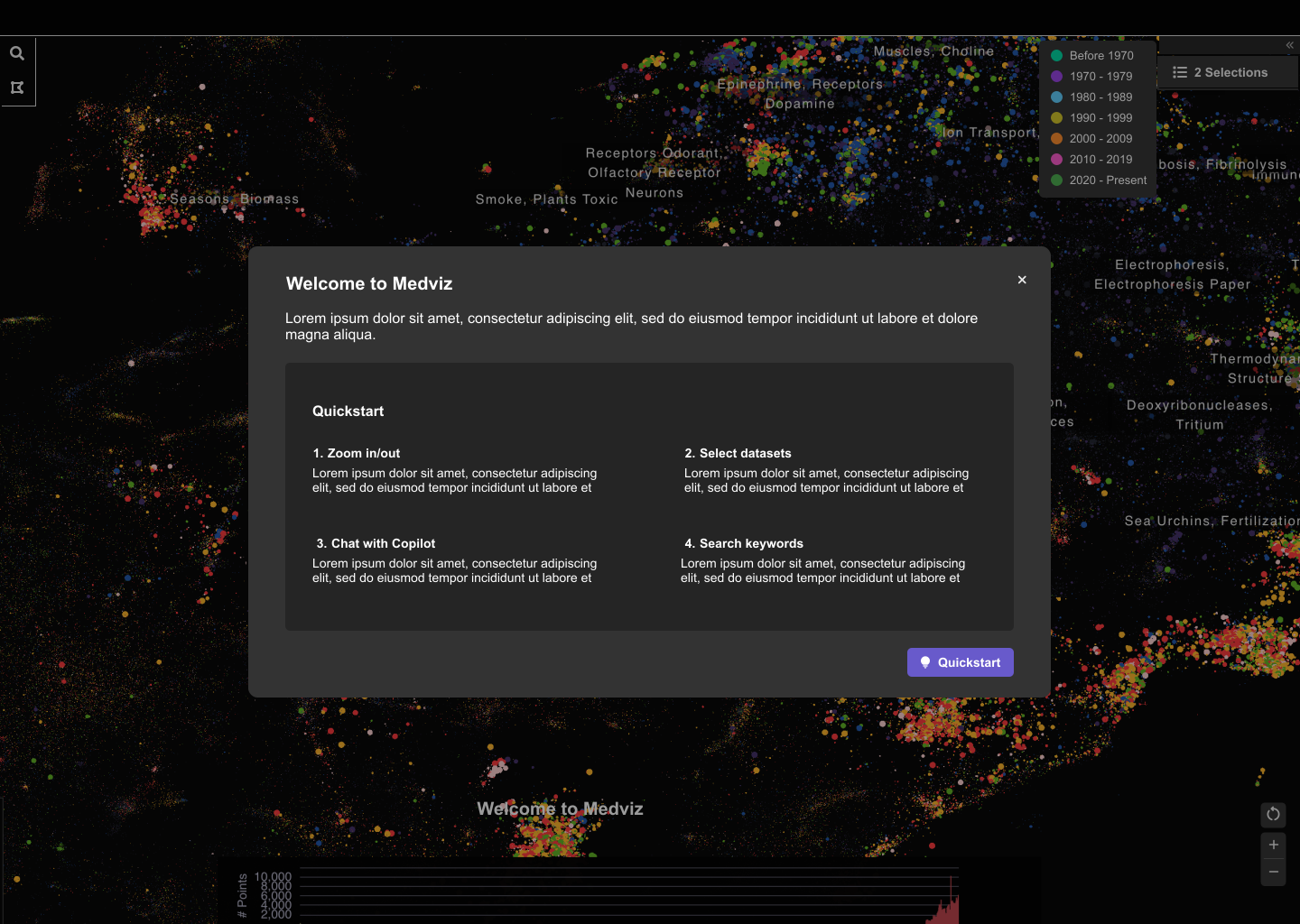
Making AI-Powered Research More Accessible: A Guided Onboarding for MedViz
The core challenge was designing a guidance system that felt helpful without getting in the way of the tool itself. New users needed enough structure to get started, but too much hand-holding would obscure the very features they came to explore. The design process focused on three principles:
- Progressive disclosure: reveal steps one at a time, not all at once.
- Minimal interruption: keep the guide small and easy to dismiss.
- Clear sense of completion: give users a moment of recognition when they finish onboarding.
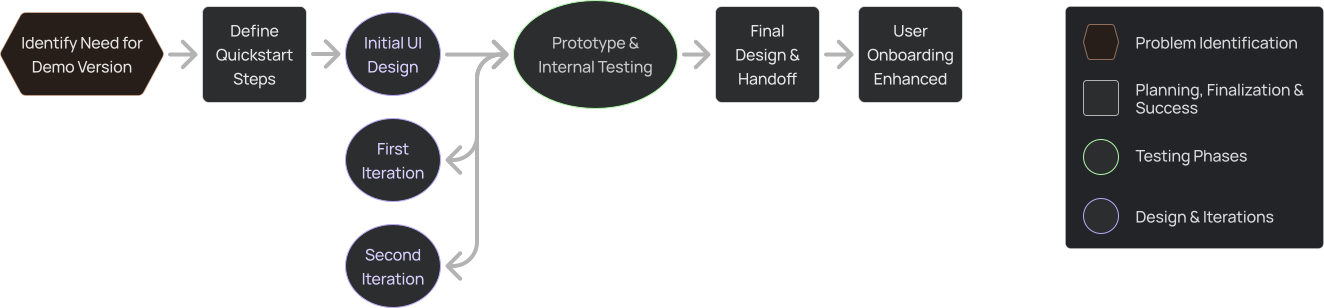
Beyond Complexity: Making MedViz More Intuitive for New Users
Create a clear guidance system for seamless user onboarding.
Deliver a realistic demo without disrupting development.
Balancing high-fidelity design with fast development timelines.
Guiding non-expert users without oversimplifying MedViz's core capabilities.
Initial Design: Setting the Foundation
The hypothesis was that placing the guide alongside existing interface elements, using the same accordion pattern already in MedViz, would feel familiar to the development team and require minimal codebase changes. This kept the first design low-risk while we validated the concept with users.
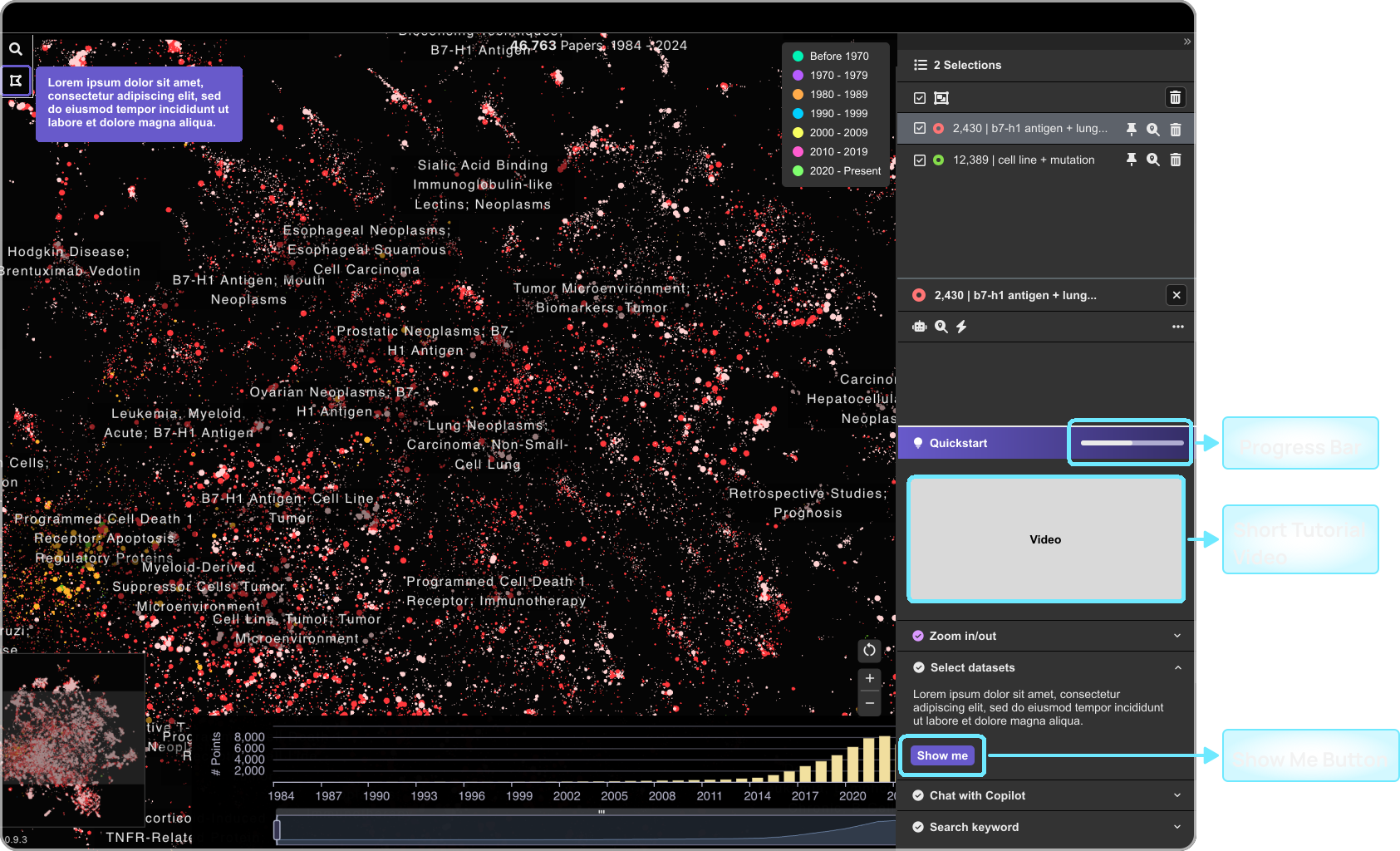
- Positioned the Quickstart Guide on the right side, maintaining the existing accordion layout for consistency and minimal development impact.
- Each step expanded to show instructions, with a "Show Me" button to highlight relevant UI elements.
- Short tutorial videos provided additional guidance.
- A progress bar tracked user completion.
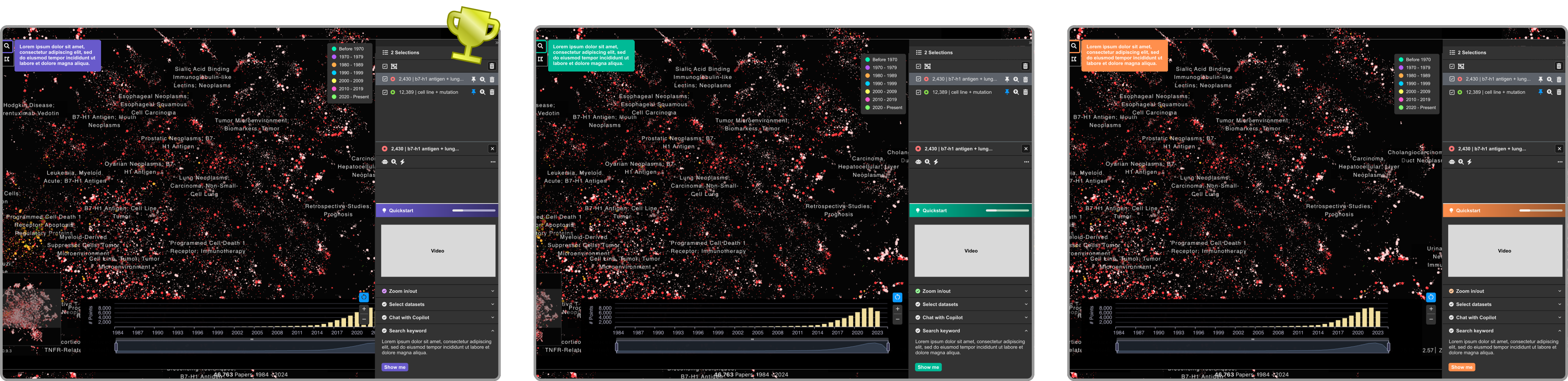
- Designed three color themes and presented them for selection.
To complement the interface's primary color, the Quickstart panel needed to stand out while maintaining visual harmony. I designed three options: deep lavender purple, teal green, and warm coral orange. The team chose purple for its contrast and cohesion with the existing interface.
Users found tutorial videos took up too much space, shifting focus away from selection details. They preferred a streamlined approach that kept the interface clear and distraction-free.
First Iteration: Refining the Experience
User testing revealed that tutorial videos were competing for attention rather than supporting understanding. Users watched the videos instead of actually trying the features. This iteration stripped back anything that didn't directly help users complete steps, and made progress feel more concrete with numeric indicators.
- Removed Video Section. This kept the focus on feature instructions without adding visual noise.
- Progress Bar Improved: added numeric indicators for clearer tracking.
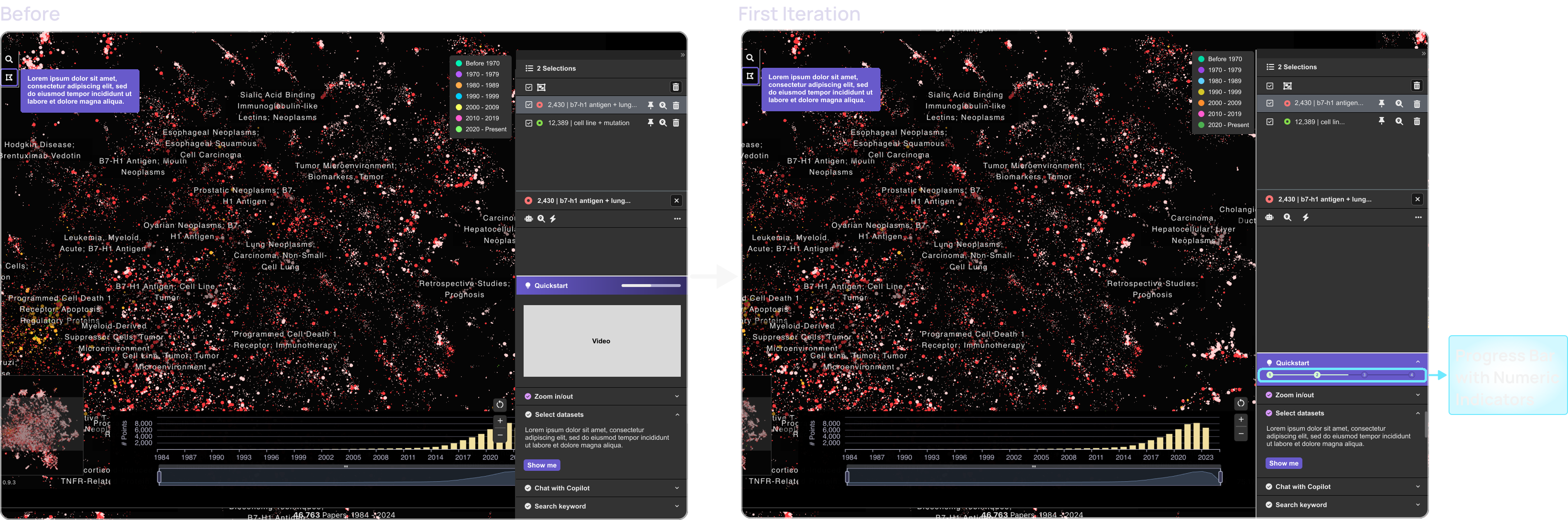
Even after improvements, testing revealed that users still struggled to locate features across the interface, leading to the repositioning of the Quickstart panel for better accessibility.
Second Iteration: Repositioning for Clarity
Testing revealed a spatial mismatch: the Quickstart panel sat on the right, but the features it guided users toward (Search, Selection) were on the left. Users had to look in two opposite directions, making the guide feel disconnected. Moving the panel to the center put guidance where users were already looking.
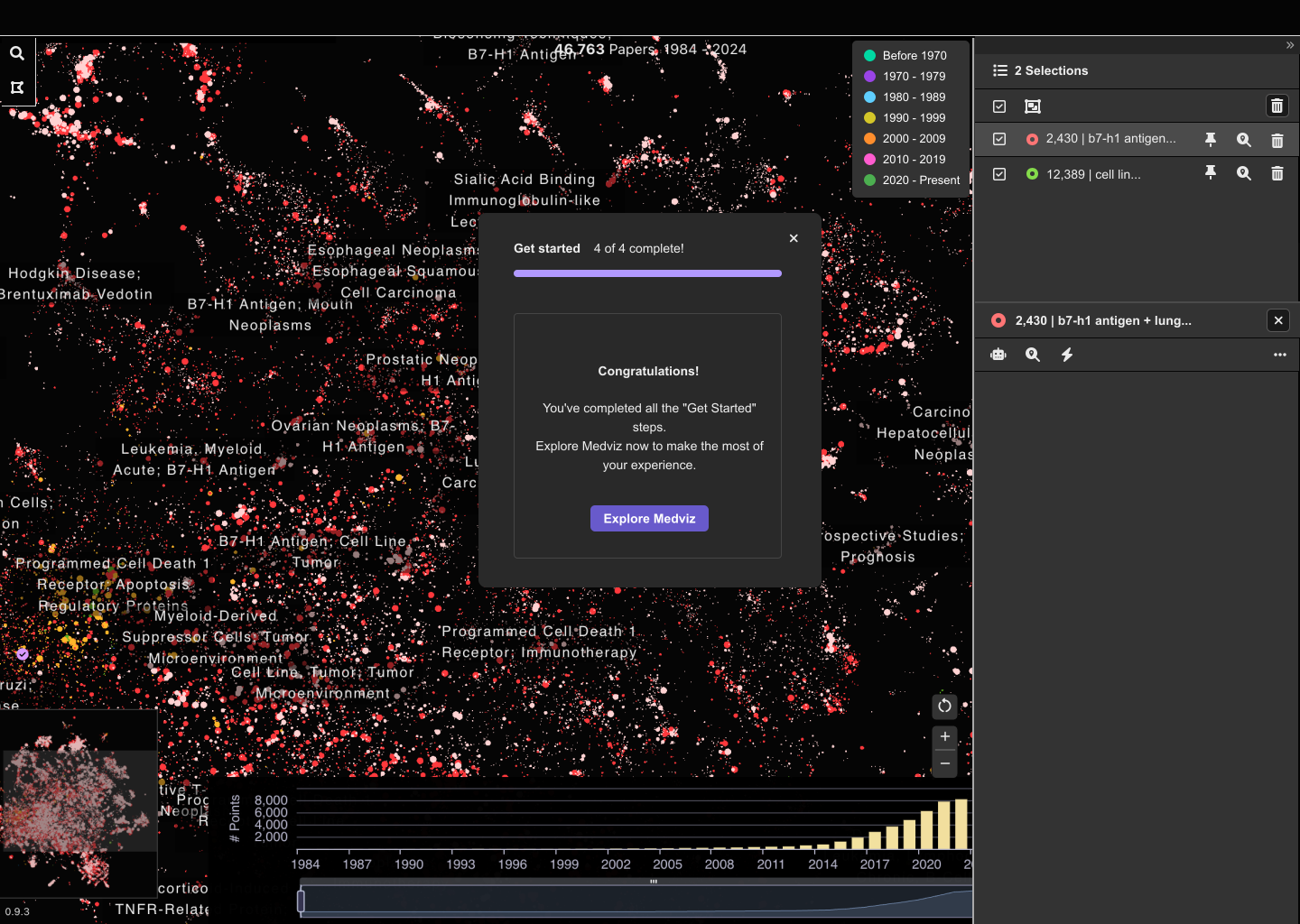
- Quickstart Panel Repositioned: moved from the right to the center, aligning guidance with where core features live.
- Removed "Show Me" Button. Users found it redundant and inefficient.
- Completion Screen Added: a final step to reinforce progress and give users a sense of achievement.
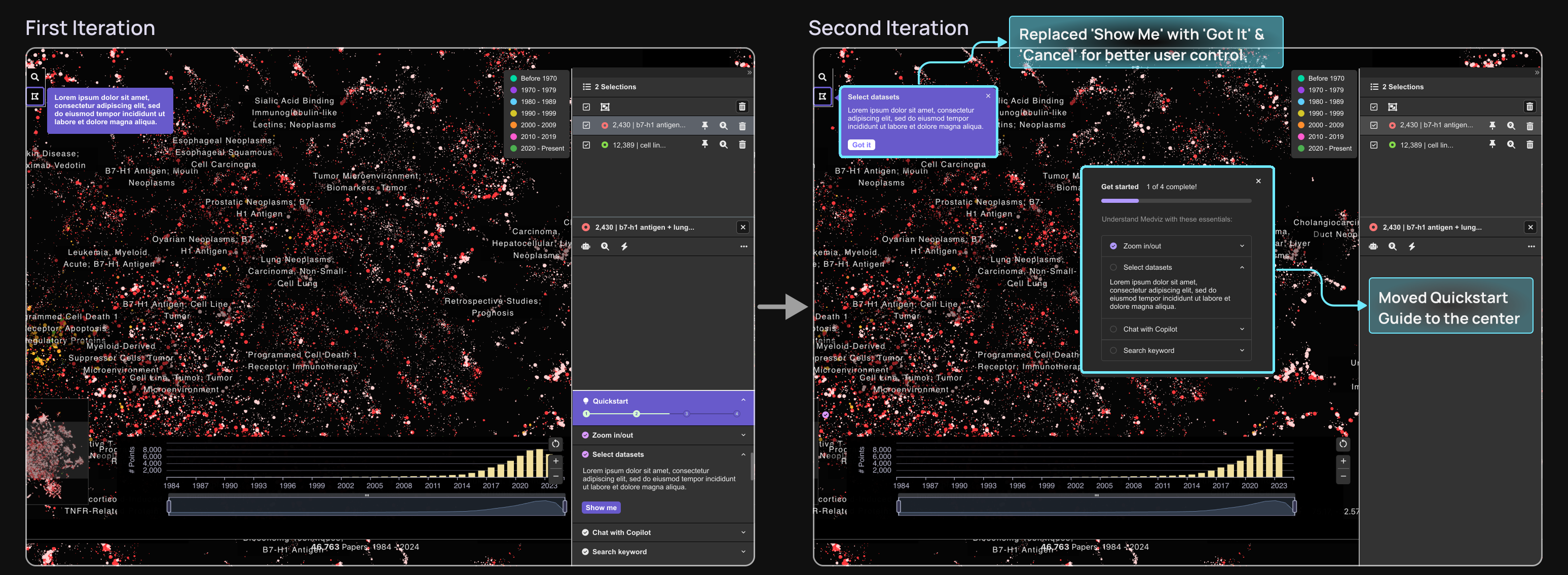
Testing confirmed that the new Quickstart panel placement felt more intuitive, and the 'Got It' & 'Cancel' buttons aligned with users' expectations from modern interactive tutorials.
- Less is more in onboarding: Removing tutorial videos and tightening the Quickstart panel kept users focused on the features rather than the guide itself.
- Iteration over assumption: Each round of user testing surfaced issues that were not obvious upfront. The spatial disconnect between the panel and the features it described only became clear through observation.
- Familiar patterns reduce friction: Using 'Got It' and 'Cancel' instead of custom labels meant users didn't need to learn the interface before learning the product.
- Completion matters: Adding a finish screen gave users a clear signal that onboarding was done, which reduced uncertainty and improved confidence in using the tool independently.