Echo: Cohort Visualization
Redesigning a Research Tool for Clarity, Accessibility, and Scale
Echo helps clinical researchers find eligible patient groups for clinical trials by making cohort logic and patient data easier to see, edit, and compare.
Dr. Xu assembled a team to automate the patient recruitment process. As the sole designer, I conceptualized and built the product interface, turning research-driven SQL algorithms into a functional, intuitive tool for real-world use.
Eligibility criteria, patient data, and cohort logic all stay in one place and in sync.
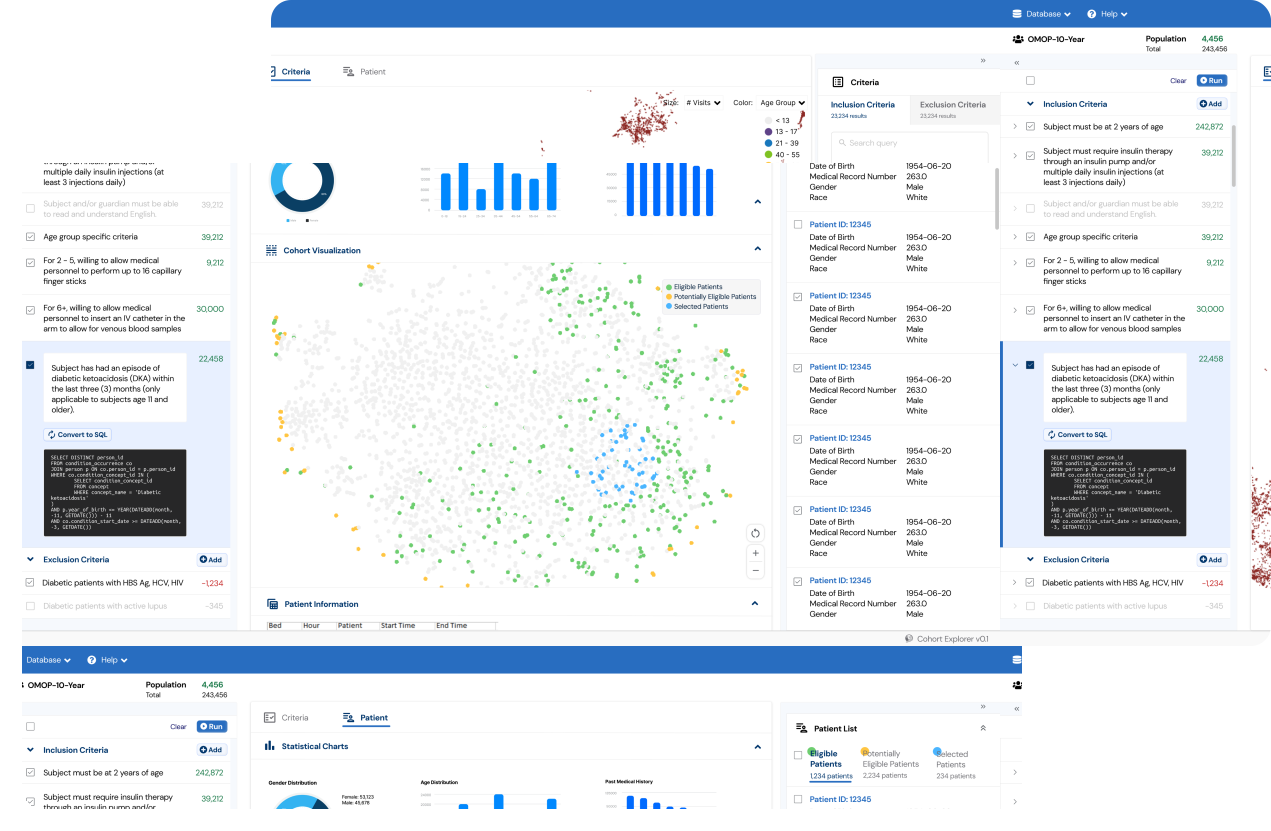
Bridging the Gap: Transforming Algorithms into Complete Tools for Healthcare Trial Matching
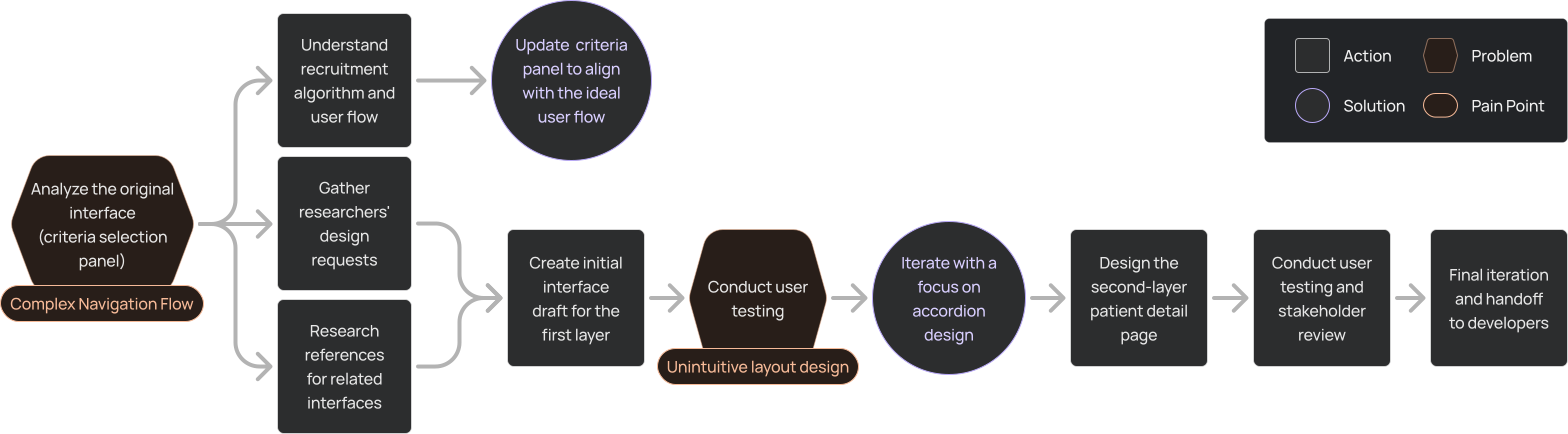
This wasn't going to be the typical Cohort Visualization
Cohort visualization for trial matching is a niche product with few existing tools on the market. This lack of references presented constraints and challenges in identifying and addressing usability problems. To navigate these, I collaborated closely with researchers through iterative discussions and revisions to refine the product.
Limited existing products for reference or inspiration.
Lack of established usability benchmarks for this niche.
Defining usability requirements without clear precedents.
Aligning the interface design with diverse researcher needs.
Ensuring functionality integrates seamlessly with trial matching workflows.
Problem 1: Misaligned User Flow
- The criteria selection panel on the original interface didn't align with researchers' workflow, creating inefficiencies and confusion during trial matching.
- I analyzed the user flow to identify misalignments, particularly focusing on unclear button functionality and its impact on user experience.
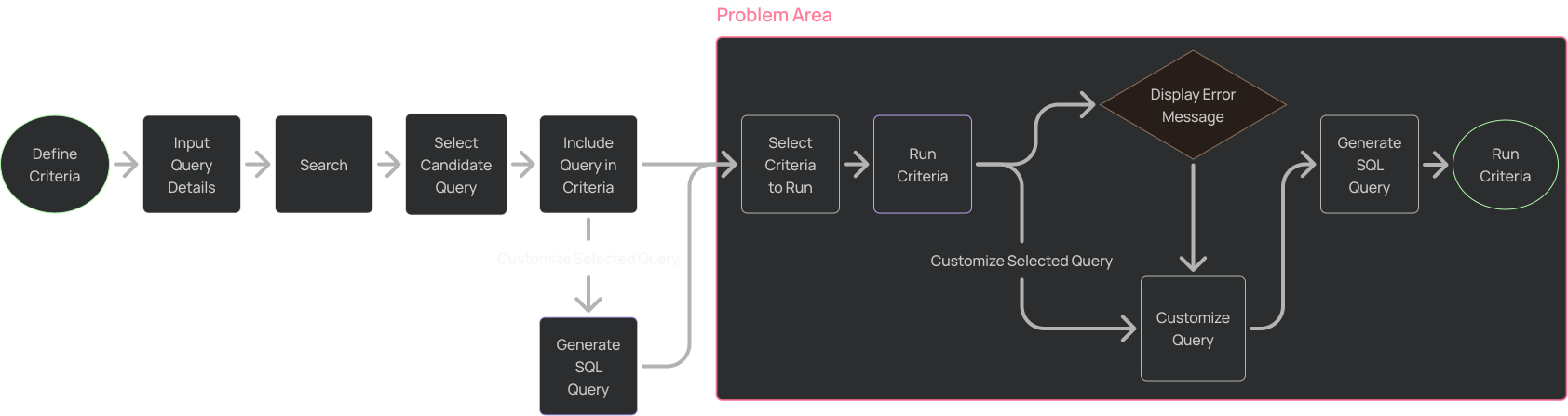
As part of my analysis, I identified that the misalignment extended to key interactive elements. The functionality of the 'Run' and 'Cancel' buttons was unclear, leading to user uncertainty and inefficiencies in completing tasks.
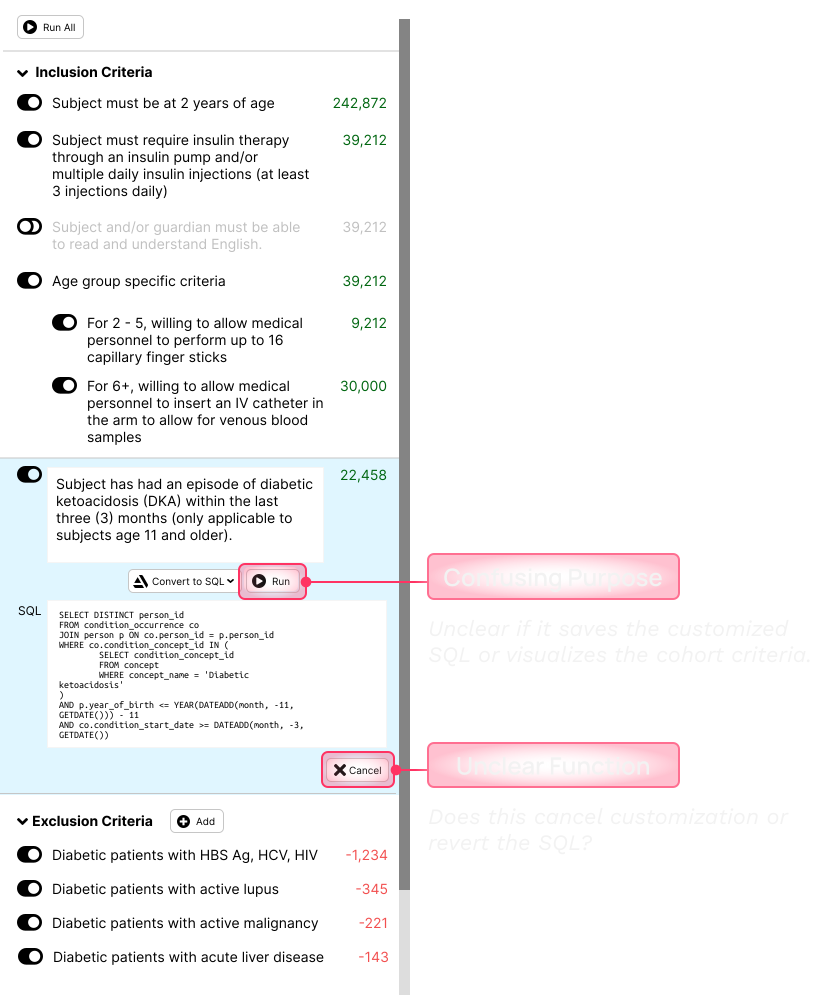
Users were unsure whether clicking "Run" would:
- Save their customized SQL query.
- Display the cohort visualization for the selected criteria.
The button lacked clear labeling or tooltips, leading to uncertainty.
Users did not know if clicking "Cancel" would:
- Revert the customized SQL to its original state.
- Exit the customization process entirely without saving changes.
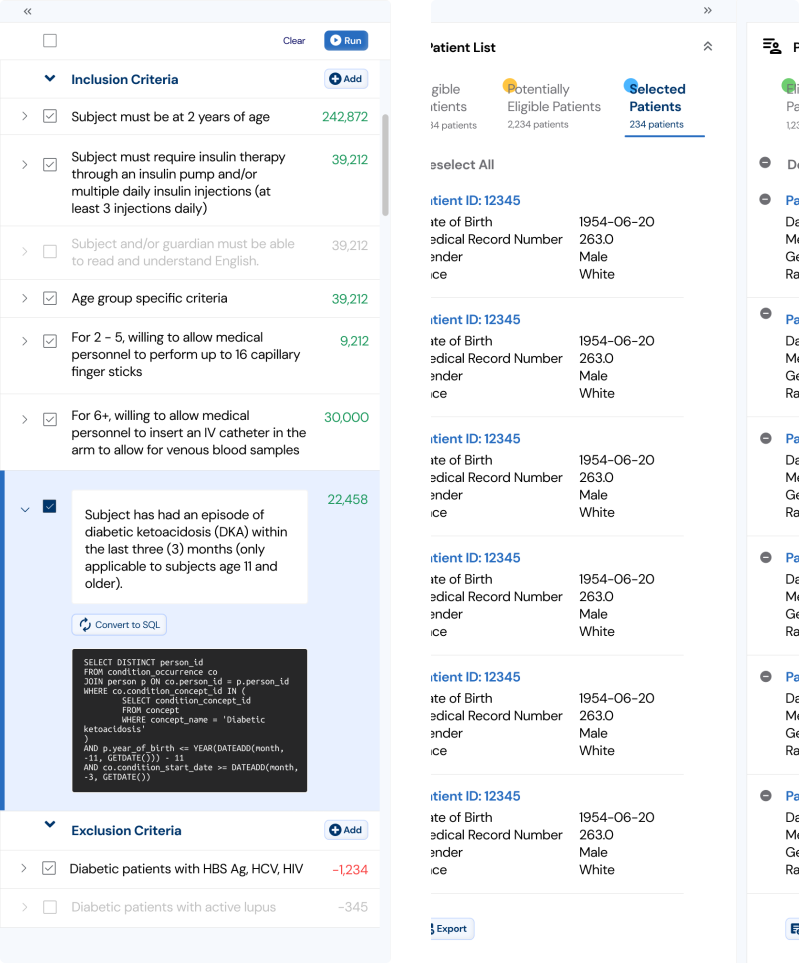
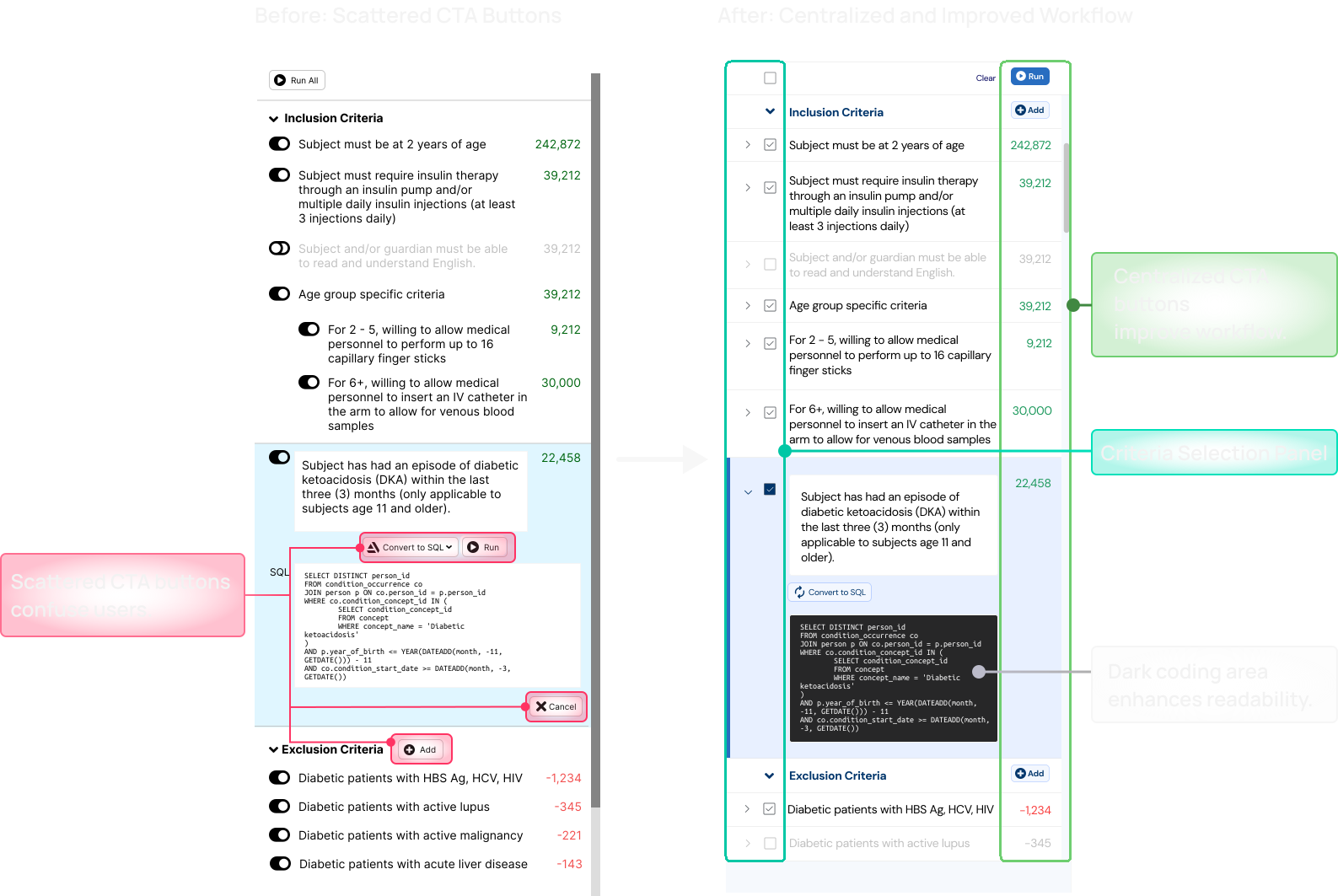
I addressed the misaligned user flow by optimizing the criteria selection panel, centralizing CTA buttons, and introducing dropdown/multiselect features. I also redesigned the coding area for better readability.
- Before Interface: Scattered CTA buttons and limited flexibility for criteria selection.
- After Interface: Centralized CTA buttons, dropdown/multiselect features, and dark-coded SQL area for enhanced usability.
Outcome 1: Optimized User Journey
This optimized user journey aligns with the refined user flow, ensuring smoother navigation and task completion.
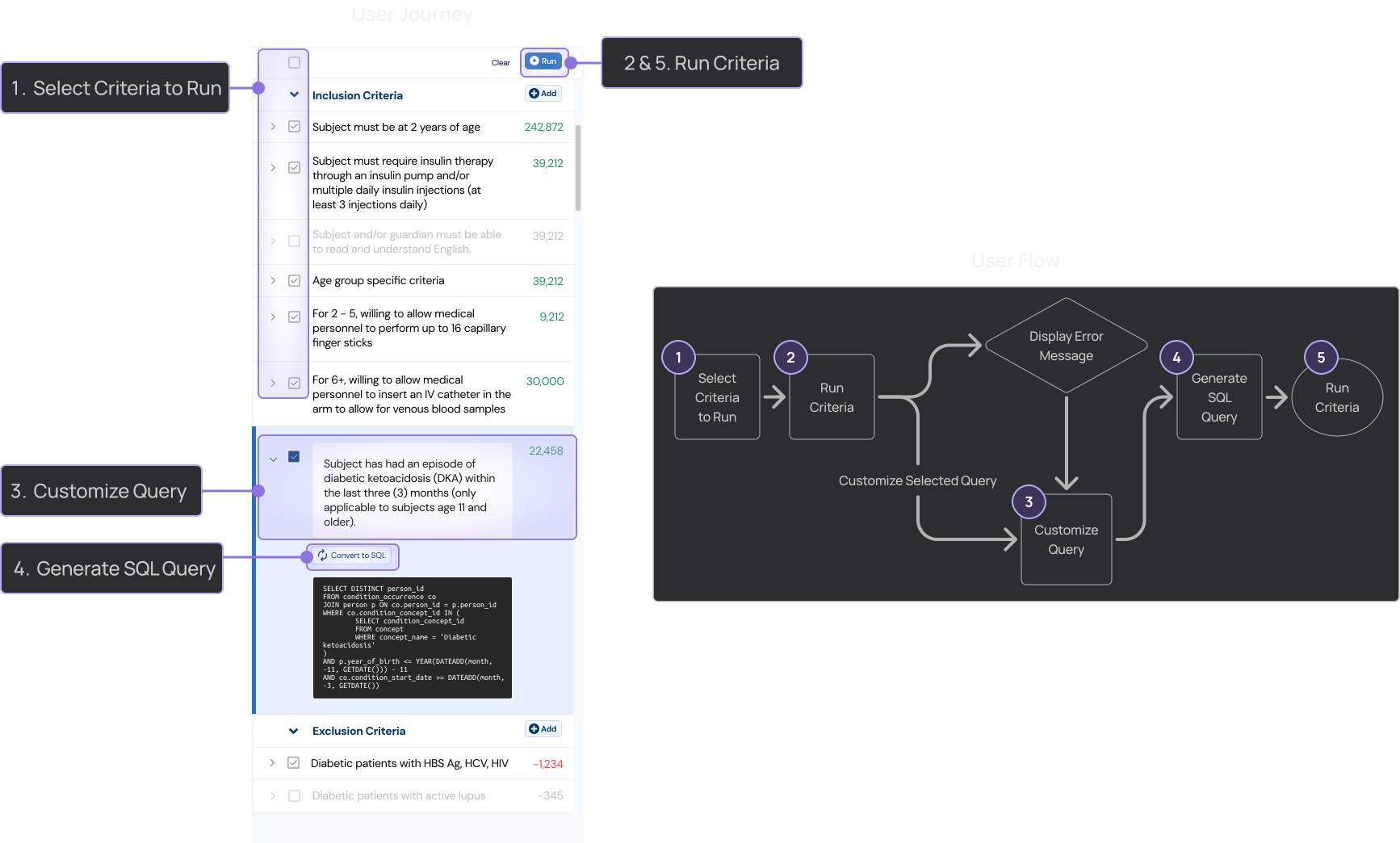
85% of users found the new interface more intuitive in testing.
Outcome 2: Integrated Researcher Input
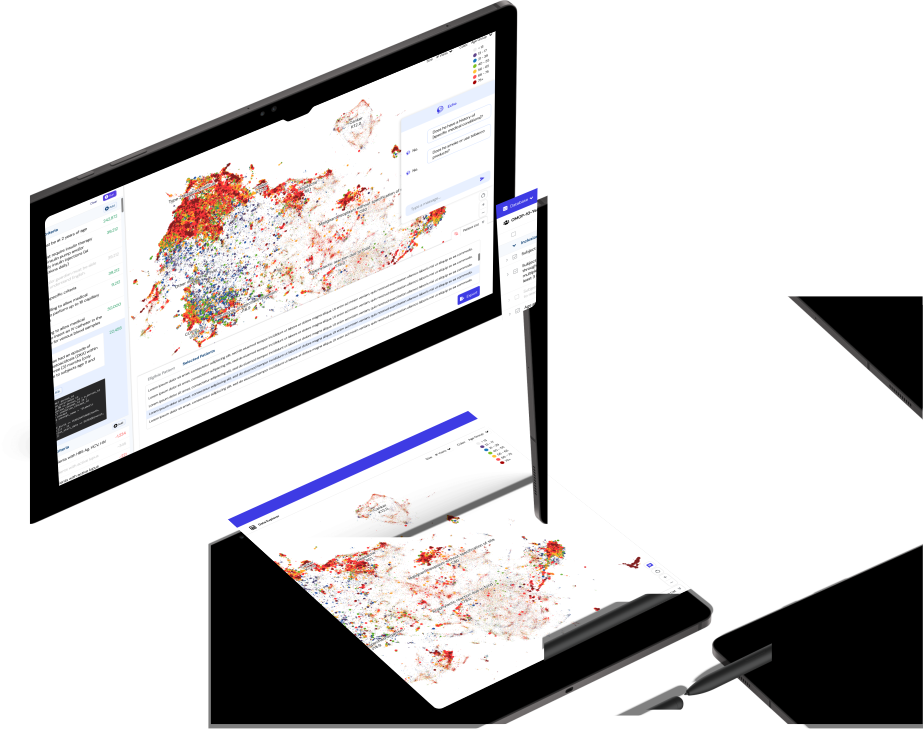
First draft design integrates all researchers' requests into a visually cohesive and functional interface.
Problem 2: Overlapping Elements and Inefficient Layout
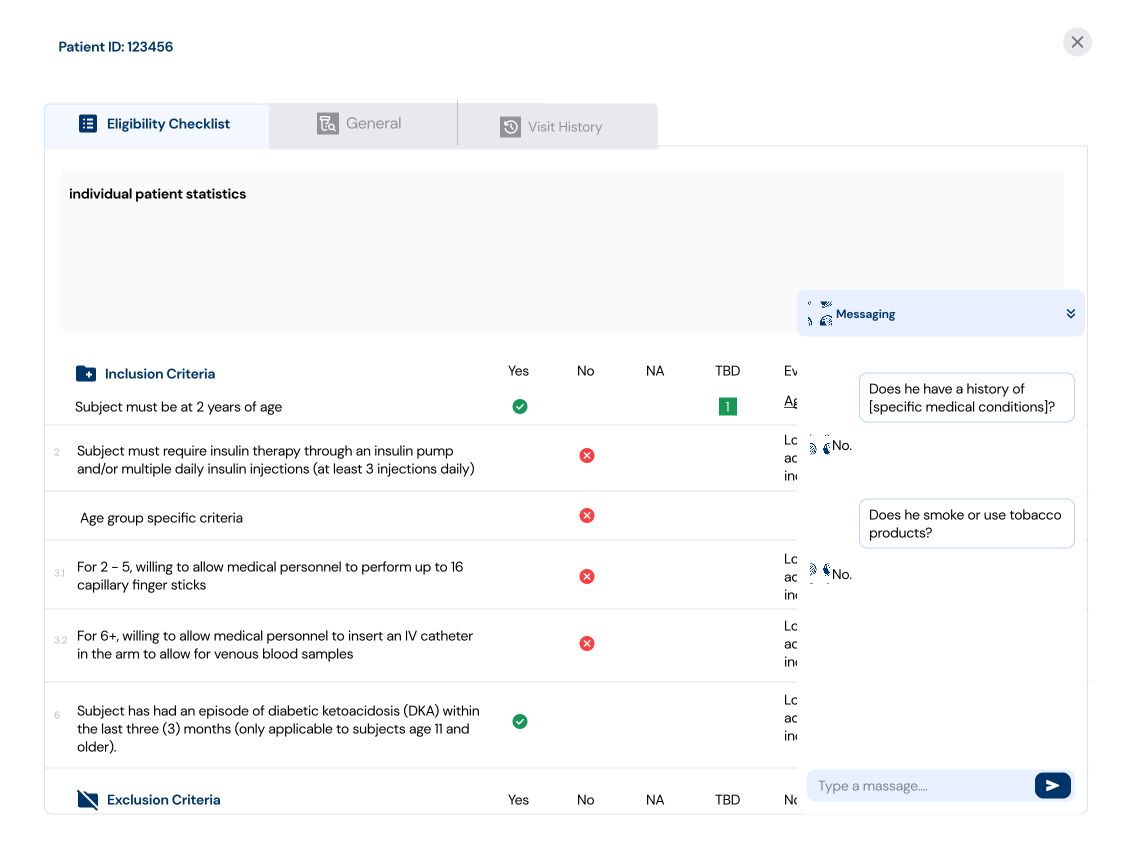
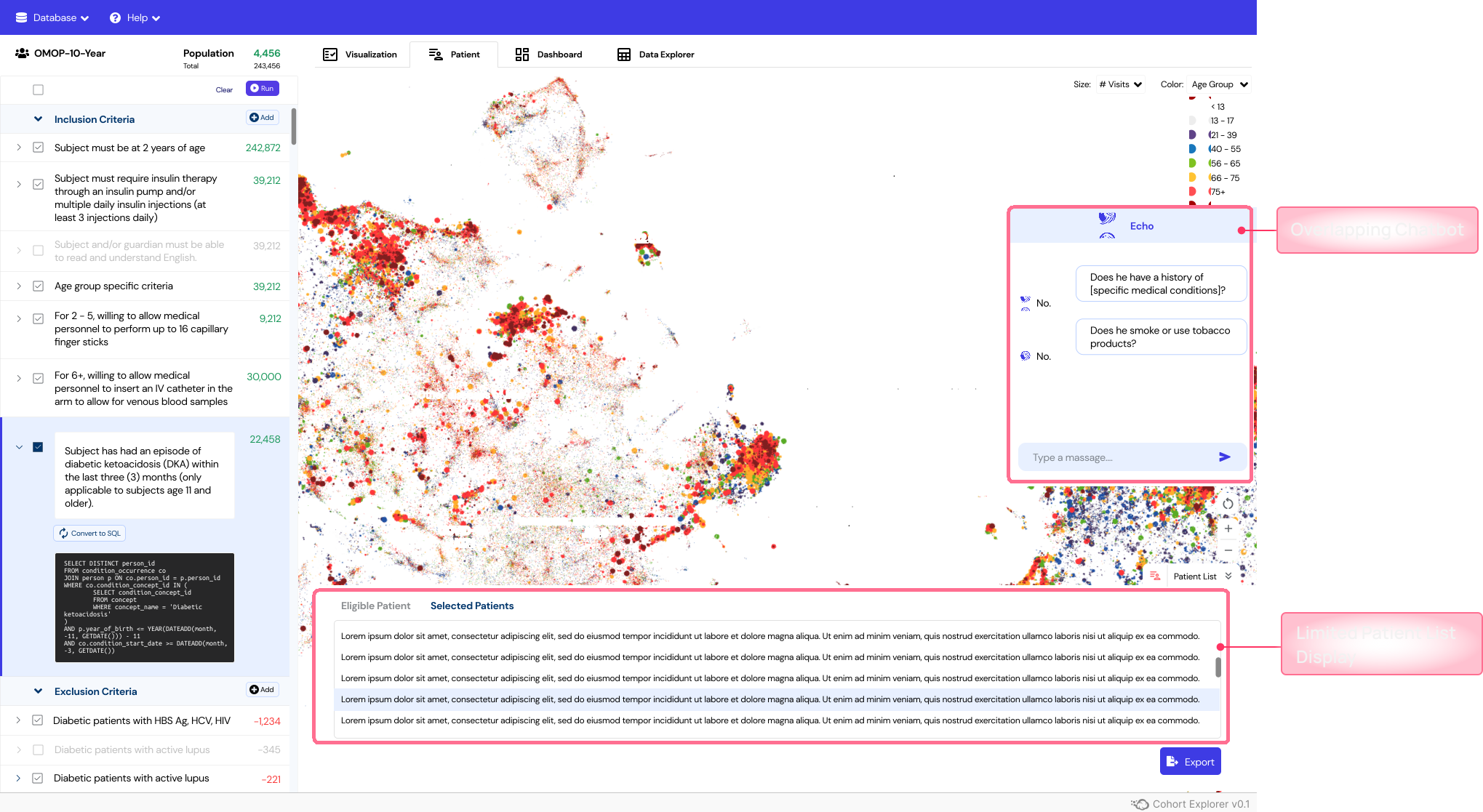
The first draft integrated all researcher feedback, but usability testing against it surfaced a second category of problems. Inspired by Google Maps, the draft aimed to incorporate drag-and-zoom functionality and a chatbot for querying patient data. However, user testing revealed several challenges:
- The drag-and-zoom map feature overlapped with the patient list panel, reducing readability and usability.
- The patient list was placed too far from the primary interaction zone, requiring excessive scrolling.
- The chatbot and visualization panel competed for screen space, creating a cluttered and confusing experience.
- Accordion Design improves usability by grouping information hierarchically.
- Chatbot Repositioning ensures uninterrupted visualization.
To address the challenges identified during user testing, I implemented the following solutions:
- Accordion Layout: Replaced the overlapping panels with a collapsible accordion, allowing users to expand only the sections they need.
- Chatbot Repositioning: Moved the chatbot to a dedicated side panel, separating it from the main visualization area.
- Patient List Anchoring: Anchored the patient list to the primary interaction zone for immediate visibility.
- Simplified Visualization: Removed drag-and-zoom from the main view and replaced it with a static but interactive chart.
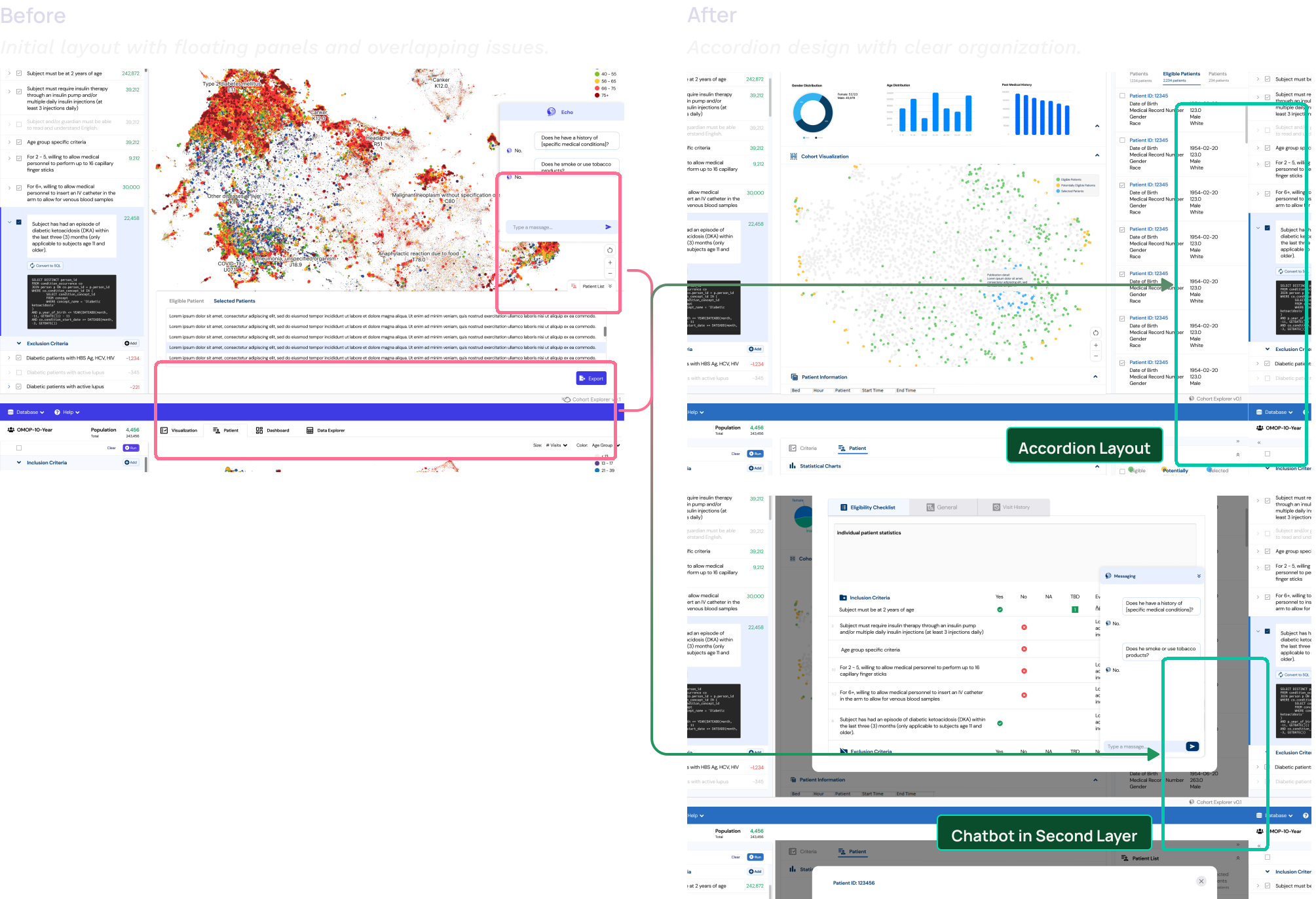
User testing revealed that researchers found the accordion design intuitive and appreciated the improved visibility of cohort data and patient lists.
After the accordion redesign, the workflow became easier to scan. Researchers could review each eligibility criterion without losing the overall cohort structure, reducing the visual overload of exposing all details at once and making the interface feel more guided and manageable.
The earlier version had exposed too much information simultaneously. The accordion structure helped separate high-level cohort logic from detailed patient evidence, so the review process felt less like reading a data dump and more like moving through a decision.
Balancing Aesthetics and Usability
With structure and flow resolved, the final phase focused on visual refinement: color, typography, components, and accessibility. The goal was a user-friendly and visually cohesive interface tailored to the needs of researchers and medical professionals, improving clarity, aligning with user preferences, and ensuring accessibility.
- The initial color scheme of Vibrant Blue-Violet was designed to evoke a modern tech feel. However, feedback during user testing revealed it felt too 'light' or 'playful' for the target audience, primarily senior researchers and doctors.
- The theme color was changed to a Professional Deep Blue, reflecting professionalism, trust, and seriousness while maintaining a modern look.
- The new theme received positive feedback during user testing, as it resonated better with the target audience's preferences and expectations.
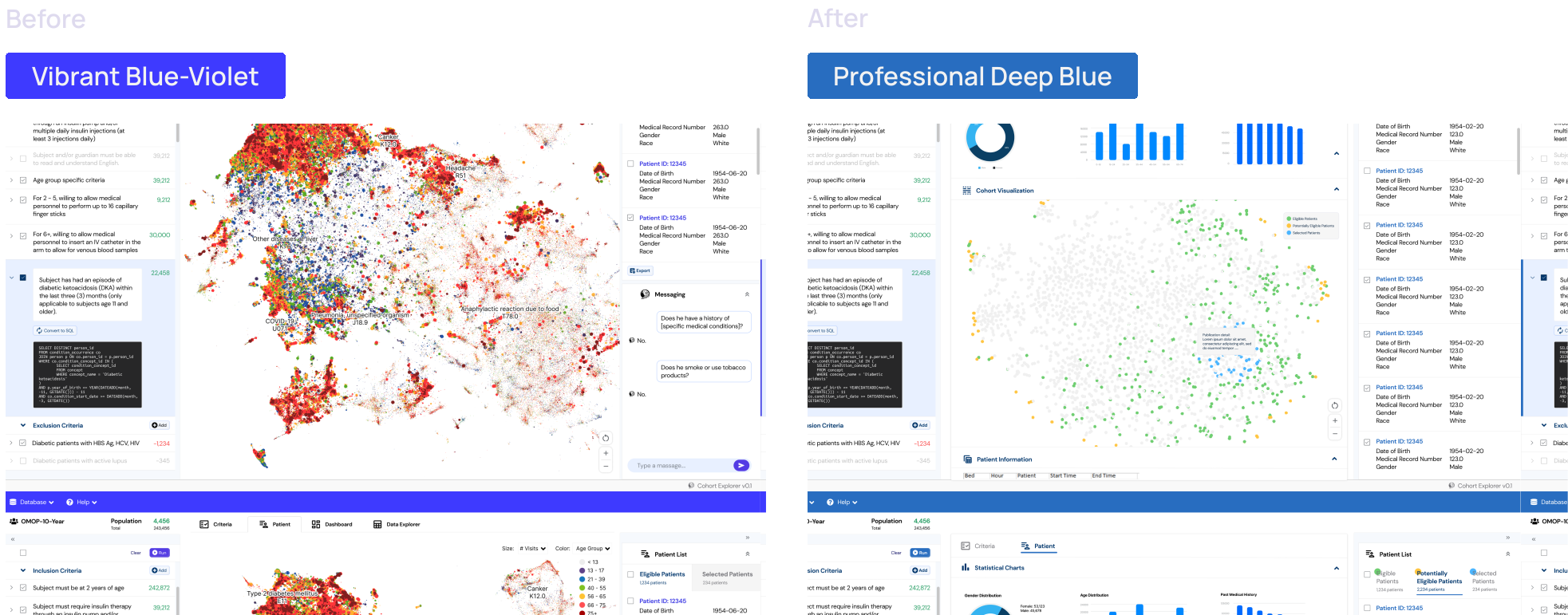
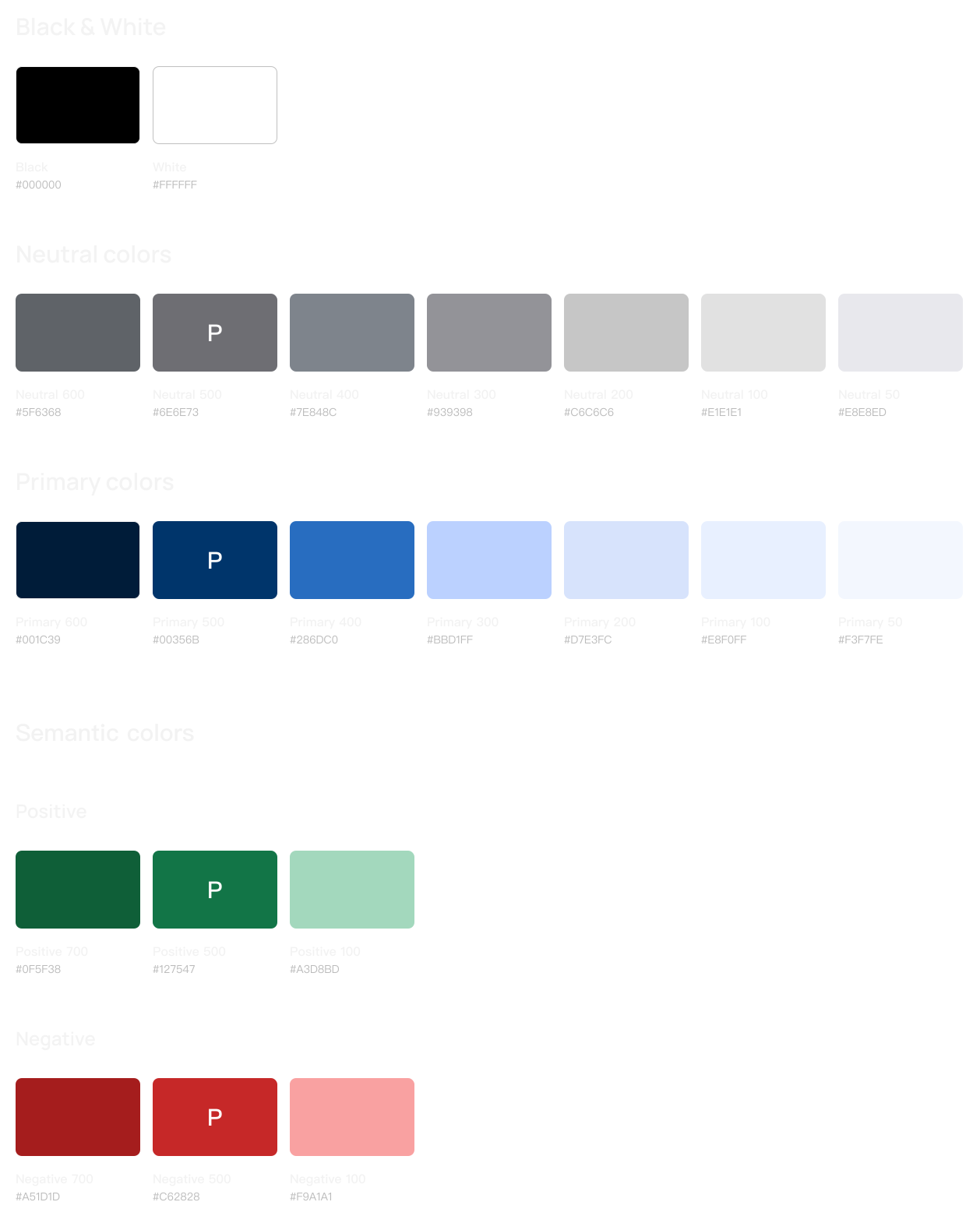
Following the theme color update, I curated a refined color palette to ensure consistency, readability, and a professional tone.
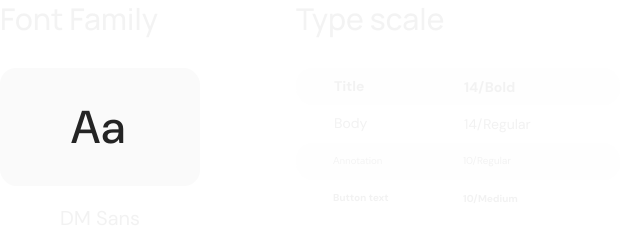
I chose DM Sans for its clean, modern design and excellent readability, making it ideal for data-heavy interfaces. Its geometric structure ensures clarity while maintaining a professional yet approachable feel for researchers and medical professionals.
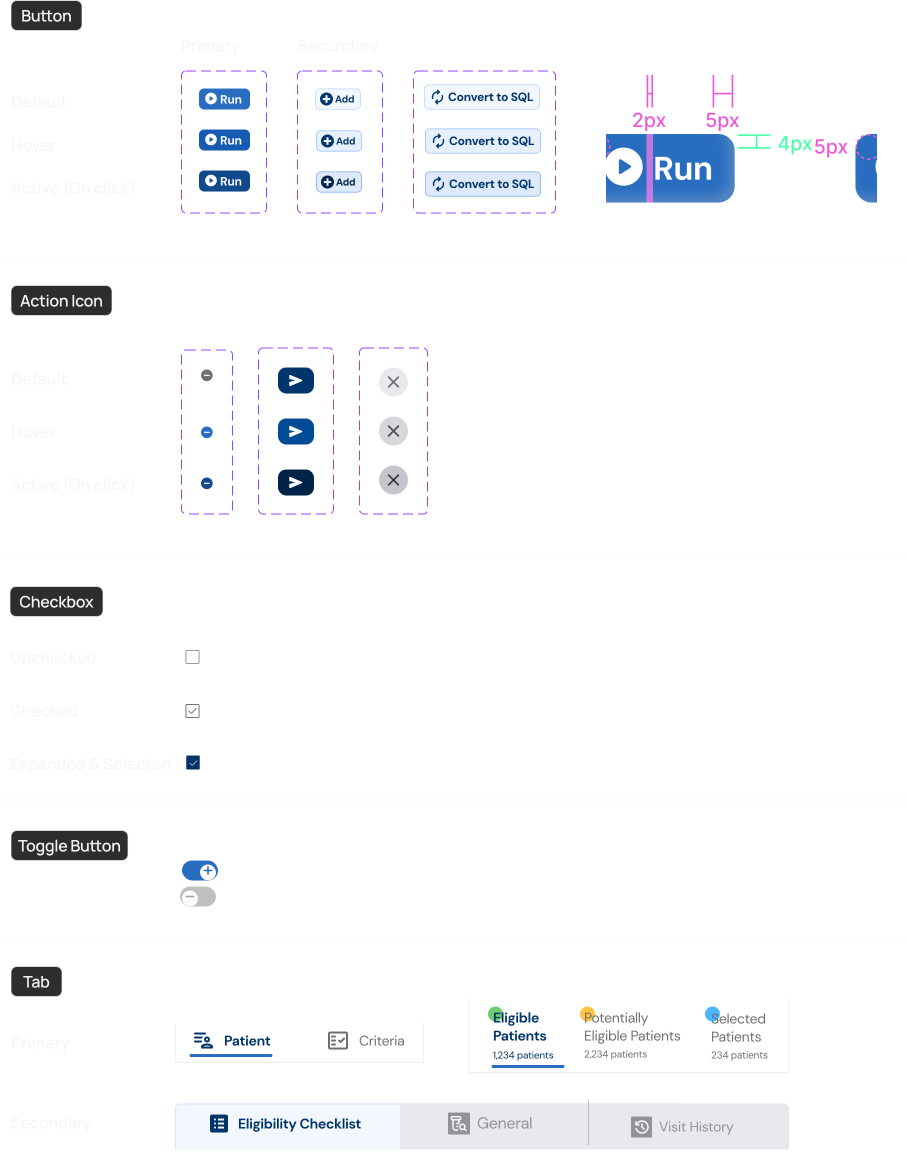
The dashboard components are designed with clear labeling and a distinct visual hierarchy to enhance visibility and usability. Interactive elements improve user engagement, while the accordion design streamlines complex information, creating a structured and intuitive layout.
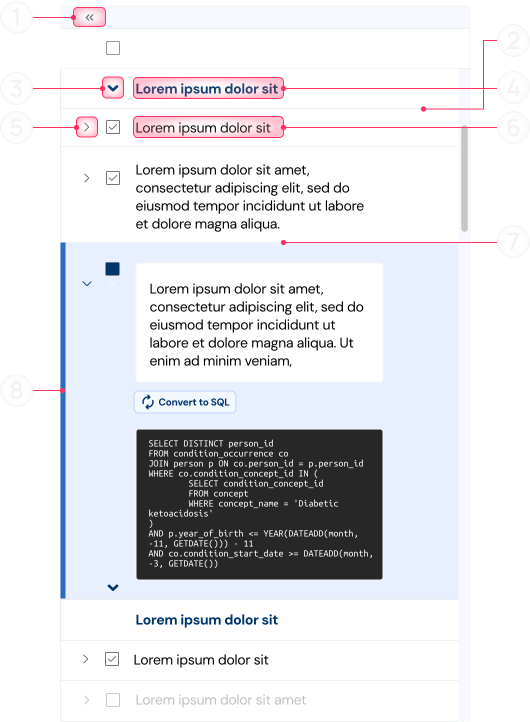
Featured in this anatomy is a single-level accordion with a nested multi-level accordion.
- Expand-all or collapse-all function: open or close all accordion rows.
- Divider: horizontal rule between expand or collapse function and the accordion.
- Expanded single-level accordion: chevron to expand or collapse single-level accordion.
- Accordion heading: descriptive label.
- Expanded multi-level accordion chevron: trigger to expand row.
- Multi-level header: descriptive label for the nested level.
- Multi-level divider: horizontal rule separating accordions.
- Expanded multi-level panel: revealed content.
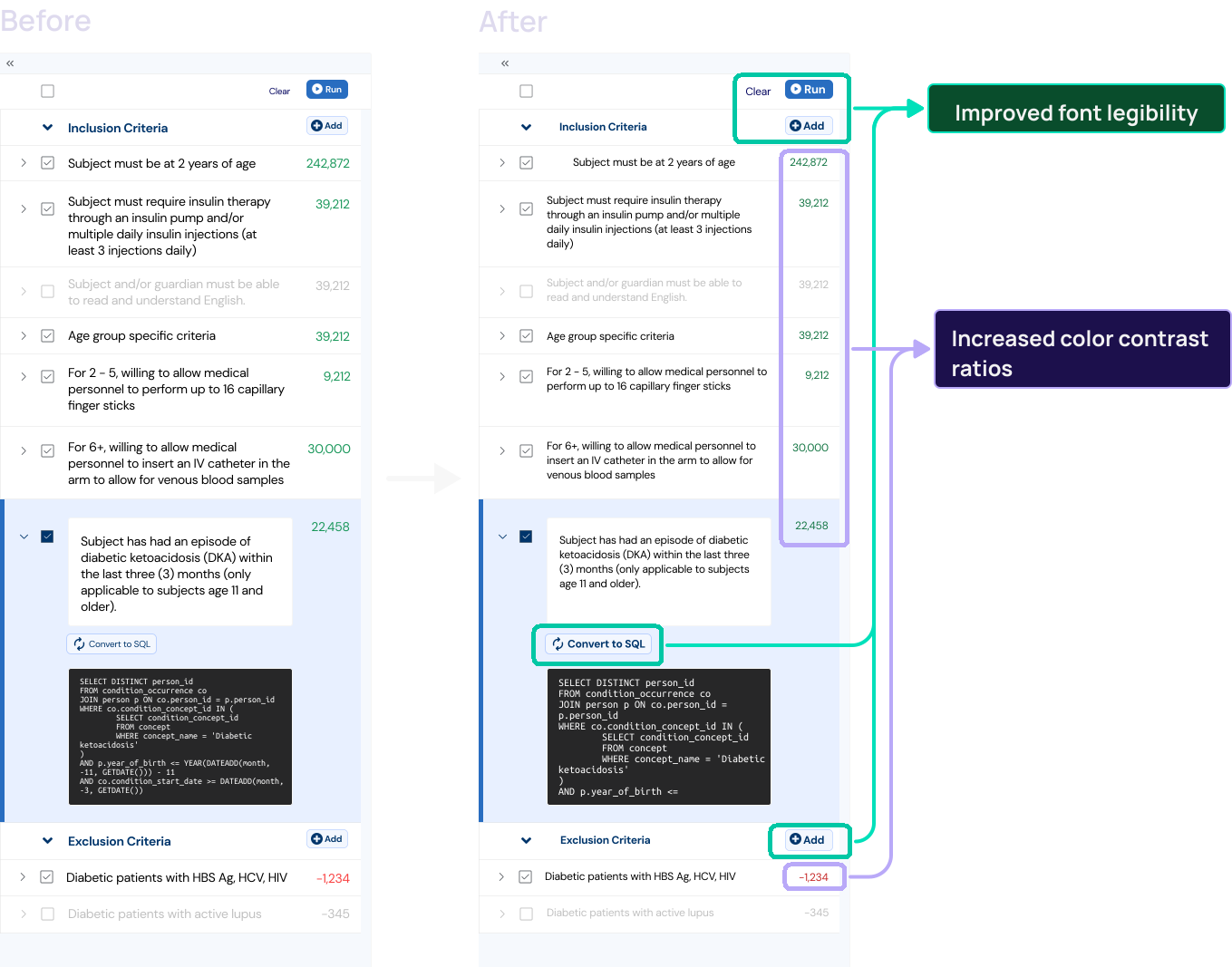
Accessibility was a key focus in this design. I refined colors and typography to align with WCAG contrast and usability standards, improving readability and ease of use. The Figma Stark plugin was used to validate text and background color compliance.
WCAG Contrast Compliance Table
| Color Combination | Before Contrast Ratio | WCAG Compliance | Adjusted Color | New Contrast Ratio |
|---|---|---|---|---|
| #F93F3F & #FFF | 3.2:1 ✕ | Fail | #C62828 ✓ | Pass (5.2:1) |
| #19975A & #FFF | 4.2:1 ✕ | Near Fail | #127547 ✓ | Pass (4.8:1) |
| #286DC0 & #FFF | 5.1:1 ✓ | Pass | No Change | ✓ Pass |
| #00356B & #F3F7FE | 7.8:1 ✓ | Pass | No Change | ✓ Pass |
| #6E6E73 & #E8E8ED | 5.5:1 ✓ | Pass | No Change | ✓ Pass |
I refined typography to enhance readability in data-heavy interfaces, increasing the minimum font size to 12px to improve legibility and meet accessibility standards.
User testing confirmed that the new theme improved readability and usability, aligning better with the expectations of researchers and medical professionals.
- Foundation for AI-assisted clinical research interfaces. This first iteration established the design language for inspecting AI-generated cohort logic and patient data in a research-grade tool. The premise that complex clinical-research logic can be made interpretable through layered visualization (rather than reduction) carried forward into Echo 2.0 (workflow redesign) and the IEEE VIS 2026 Visual Steering paper.
- Designing without precedent. At the time, no off-the-shelf tool existed for visually exploring patient cohorts derived from AI / SQL pipelines in clinical research. The interface, interaction language, and accessibility decisions established here became inputs into subsequent iterations as the research direction matured.
- Research context. Built within Dr. Hua Xu's group at the Yale School of Medicine, Department of Biomedical Informatics and Data Science, supporting biomedical AI research on AI-assisted clinical trial matching.
- Transparency in layers, not all at once. Clinical researchers need to see the logic behind cohort results, but exposing everything upfront creates cognitive overload. The hardest tradeoff in this project was calibrating how much to reveal at each step, and at what level of detail.
- The real design challenge was information timing. What surprised me most was that the core problem wasn't adding AI capability. It was deciding when and how to surface information. Getting that sequencing right shaped every layout and interaction decision.
- Test progressive disclosure earlier. If I could revisit this project, I would prototype progressive disclosure patterns with users much earlier, instead of designing a fully visible workflow first and optimizing later.
- Designing without precedent requires closer collaboration. With no comparable tools on the market, user feedback wasn't supplementary; it was the primary design input. Iterating directly with researchers was what made it possible to define usability standards for this niche.