Structuring the MedViz Interface: From Chaos to Clarity
Redesigning a complex research tool for better usability, discoverability, and visual consistency
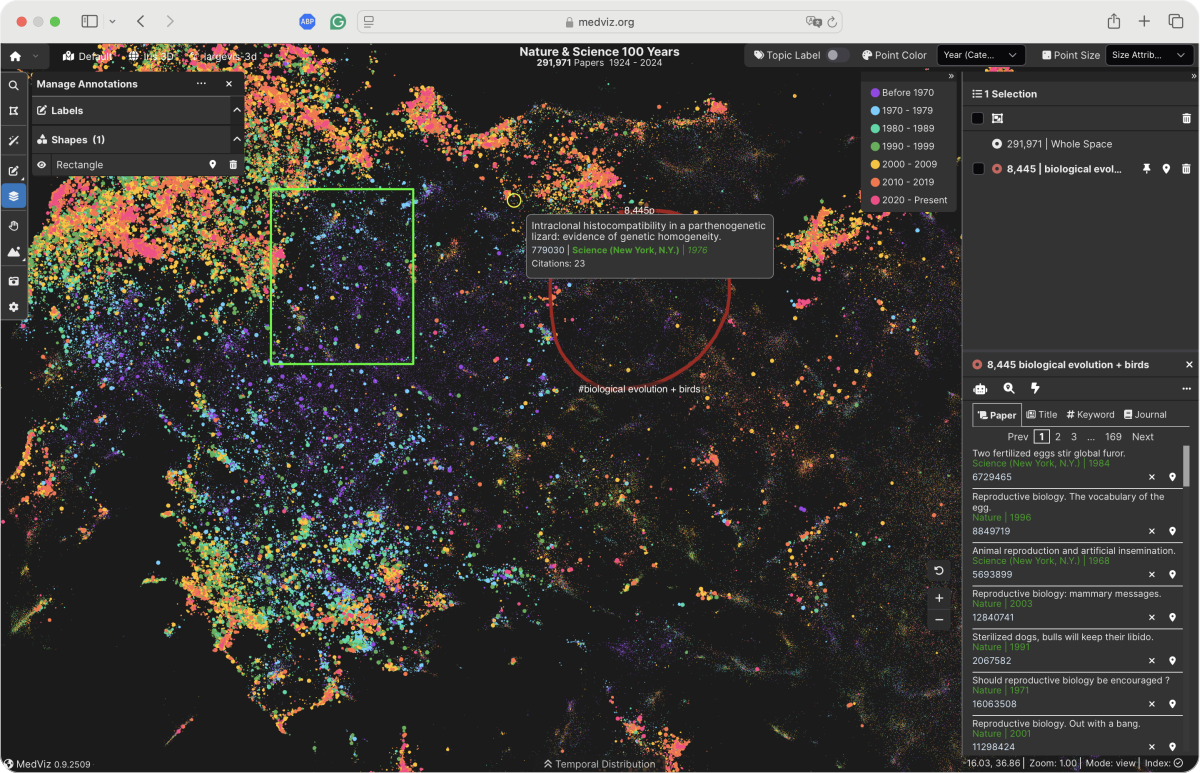
A streamlined MedViz interface for enhanced clarity, efficiency, and intuitive navigation.
One Question That Revealed a Bigger Problem
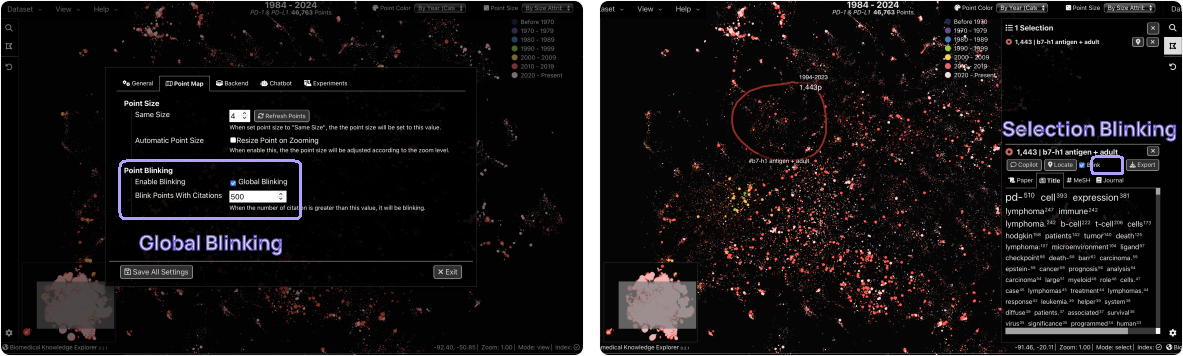
A developer asked a simple question: where does the blinking feature live? It should have been easy to answer. It was not. MedViz had two separate blinking behaviors hidden in two completely unrelated locations.
The entire data visualization blinks simultaneously.
Only the currently selected data points blink.
Two related features with no shared home. That inconsistency made the deeper problem clear: MedViz lacked feature categorization, the interface had grown overwhelming, and new users had no reliable way to navigate it.
Improve feature discoverability so users can find tools without guessing or exploring randomly.
Enhance usability by organizing controls around actual user tasks and workflows.
Reduce visual clutter with a consistent icon language and simplified panel structure.
From Scattered Features to a Structured, Intuitive Interface
Research: Gathering UI/UX References
Before restructuring anything, I studied how other complex, data-heavy tools organize their interfaces. I looked for patterns that consistently help users navigate dense feature sets.
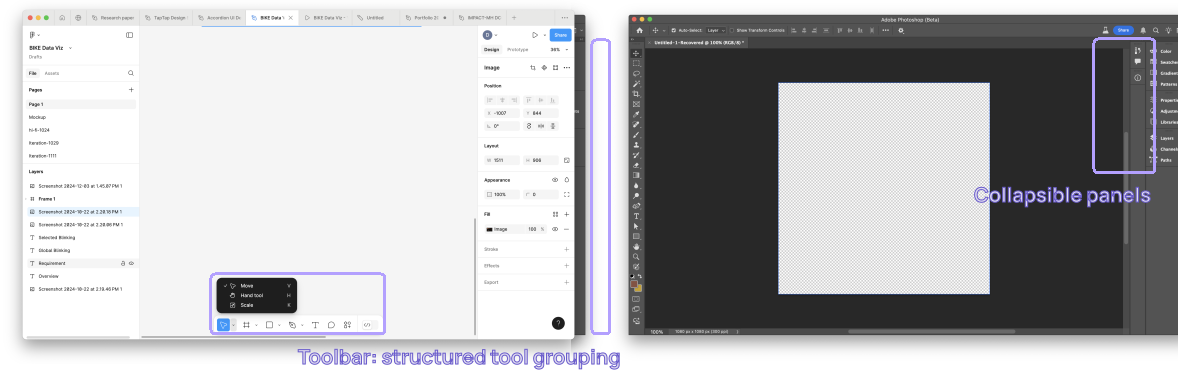
- Photoshop: grouped toolbars with clear visual hierarchy and persistent panel positions.
- Figma: context-sensitive panels that surface only what is relevant to the current selection.
- Tableau: data-focused layouts with distinct zones for controls, filters, and visualization.
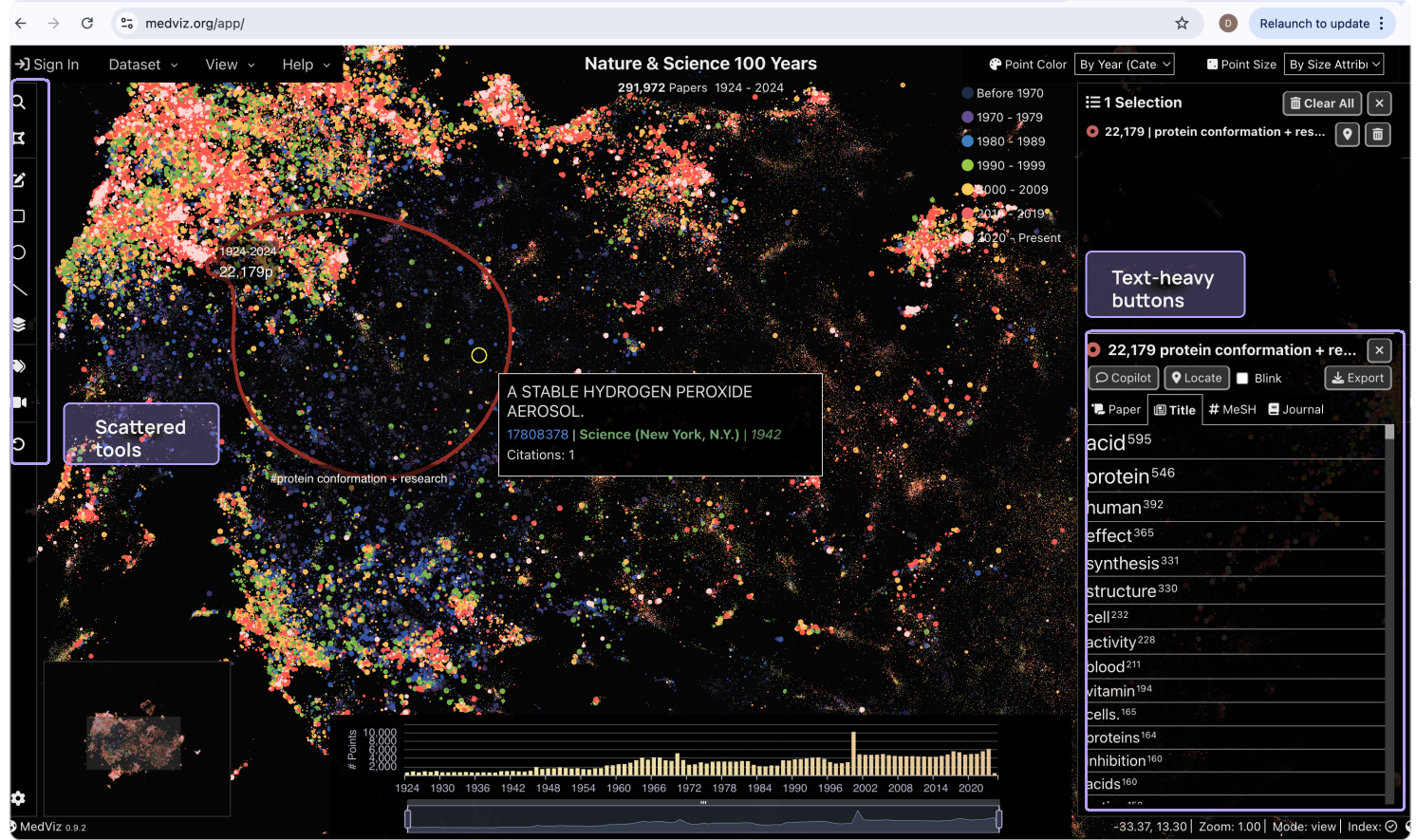
Feature discoverability: Tools were scattered with no clear grouping, making navigation difficult.
Cluttered interface: Text-heavy buttons reduced visual clarity and created unnecessary noise.
Inefficient workspace: The right panel was hard to locate and access during typical workflows.
Feature Categorization & Left Panel Optimization
I restructured the left-side panel into a dedicated Tools Panel with two clear categories, so users always know where to look.
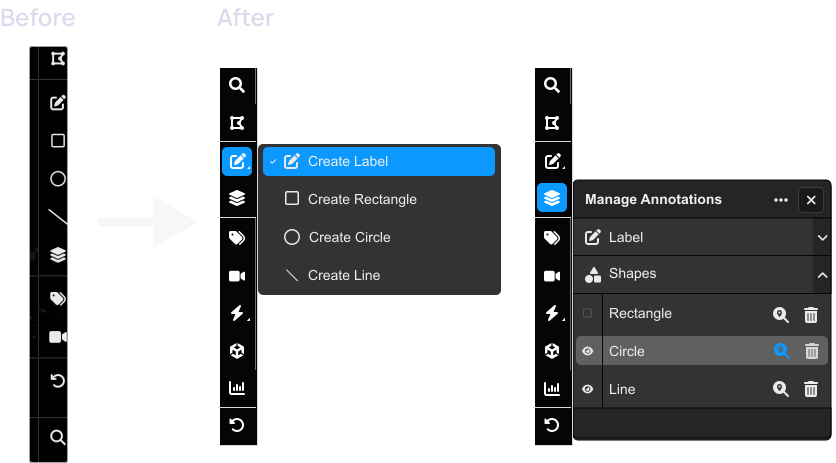
- Previously, Create Label, Rectangle, Circle, and Line were all displayed in the main panel. They are now grouped under a structured sub-menu, making the selection process more intuitive.
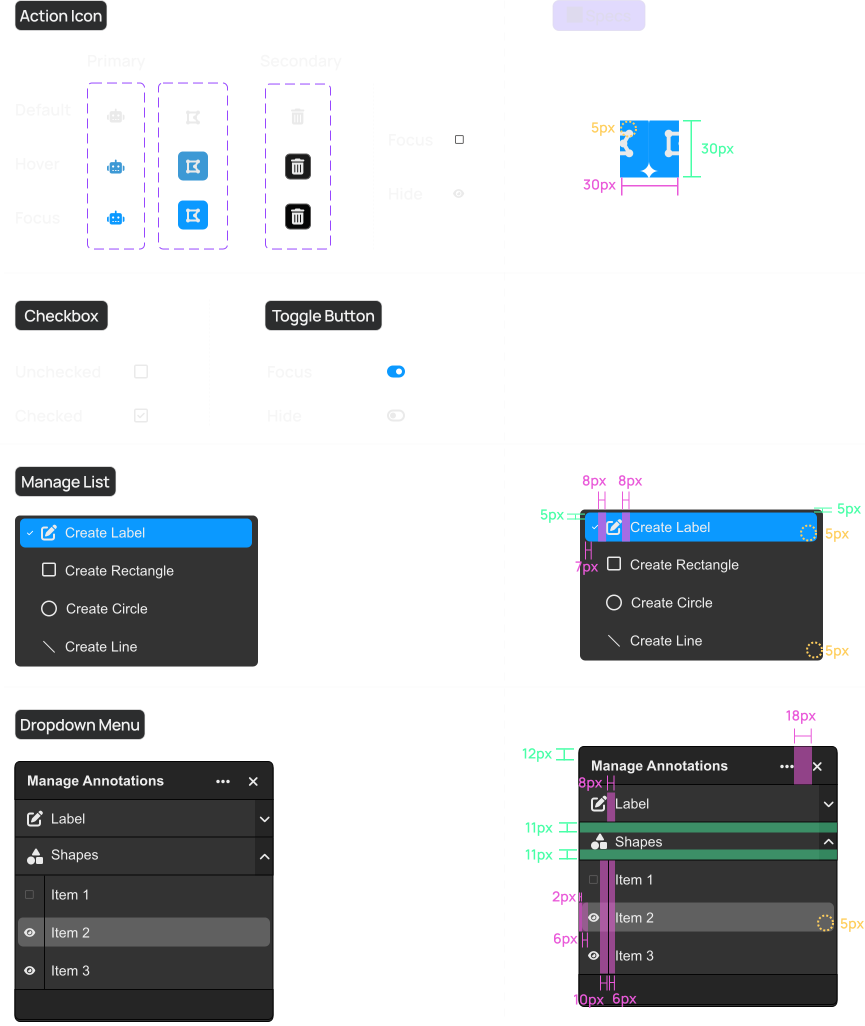
- Manage Annotations was redesigned: instead of opening a full-height side panel, it now appears as a compact dropdown, improving accessibility without blocking the workspace.
- Users can locate or delete annotations with one click, and categorized annotation types make dataset management faster.
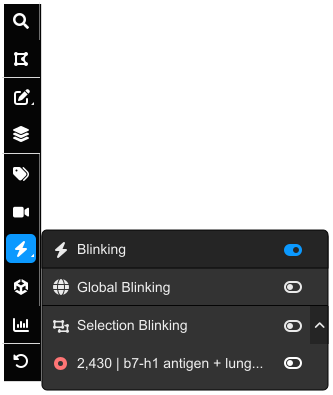
- Global Blinking and Selection Blinking were previously buried in separate menus, making them hard to find.
- Both are now in the left-side Tools Panel for quick access.
- Clicking the blinking tool opens a small inline panel, letting users toggle blinking for specific datasets effortlessly.
UI Simplification: Icons & Tooltips
To declutter the interface, I simplified the icon system and surface-level controls.
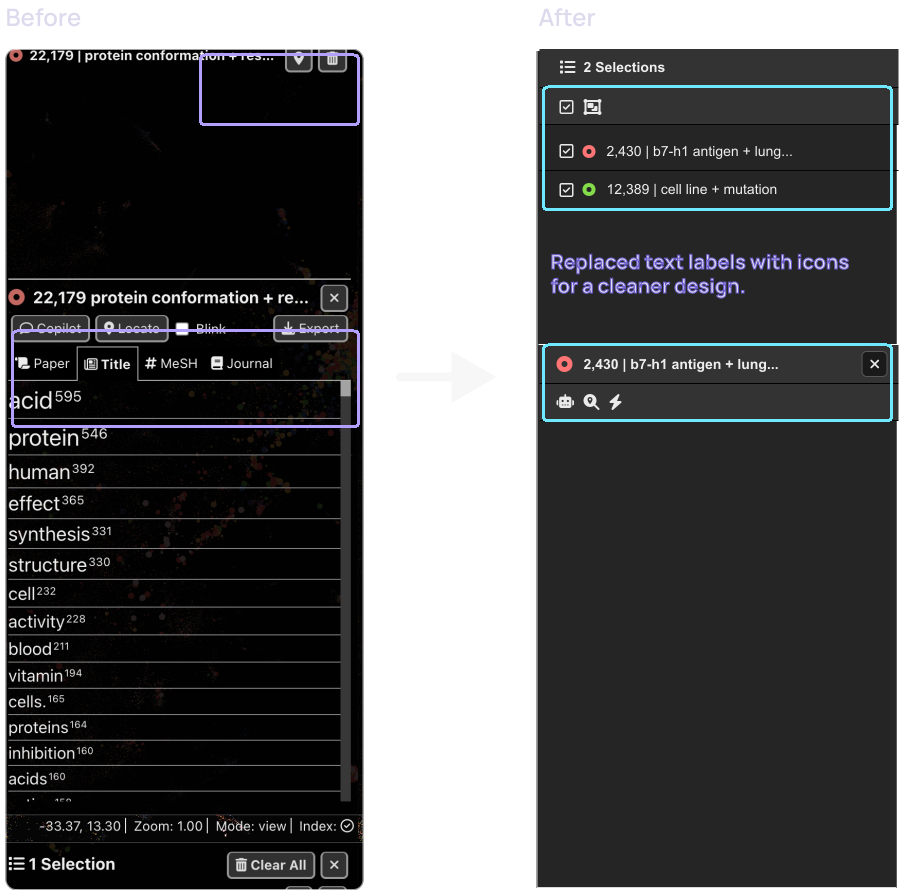
- Replaced text labels with icons for a cleaner, less visually noisy design.
- Added hover tooltips to display feature names only when needed.
- Prioritized key features such as global blinking by moving them to the main toolbar instead of burying them inside submenus.
Redesigning the Right Panel: Accordion Layout
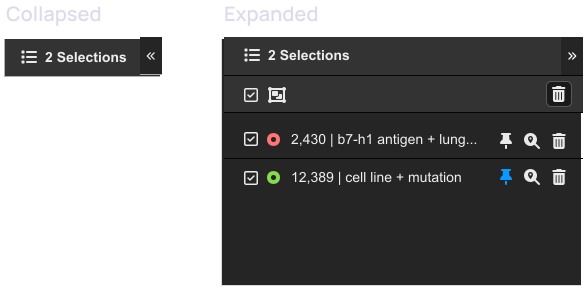
The original selection panel was difficult to find. Users had to navigate through View > Open Selection Panel to access it, which was unintuitive and slowed down typical workflows.
- Users can now expand or collapse the panel as needed.
- A clear icon indicates the panel's function and availability at a glance.
- Clicking the icon directly opens or closes the panel, removing the need to navigate through menus.
Collaboration with Researchers & Developers
Conversations with researchers and developers helped me understand real usage patterns before making any cuts or additions.
- Mapped which features researchers rely on daily to protect critical workflows from disruption.
- Identified redundant controls that could be removed or consolidated without functional loss.
- Collected new feature requests to scope improvements for a future iteration.
Establishing a Design System
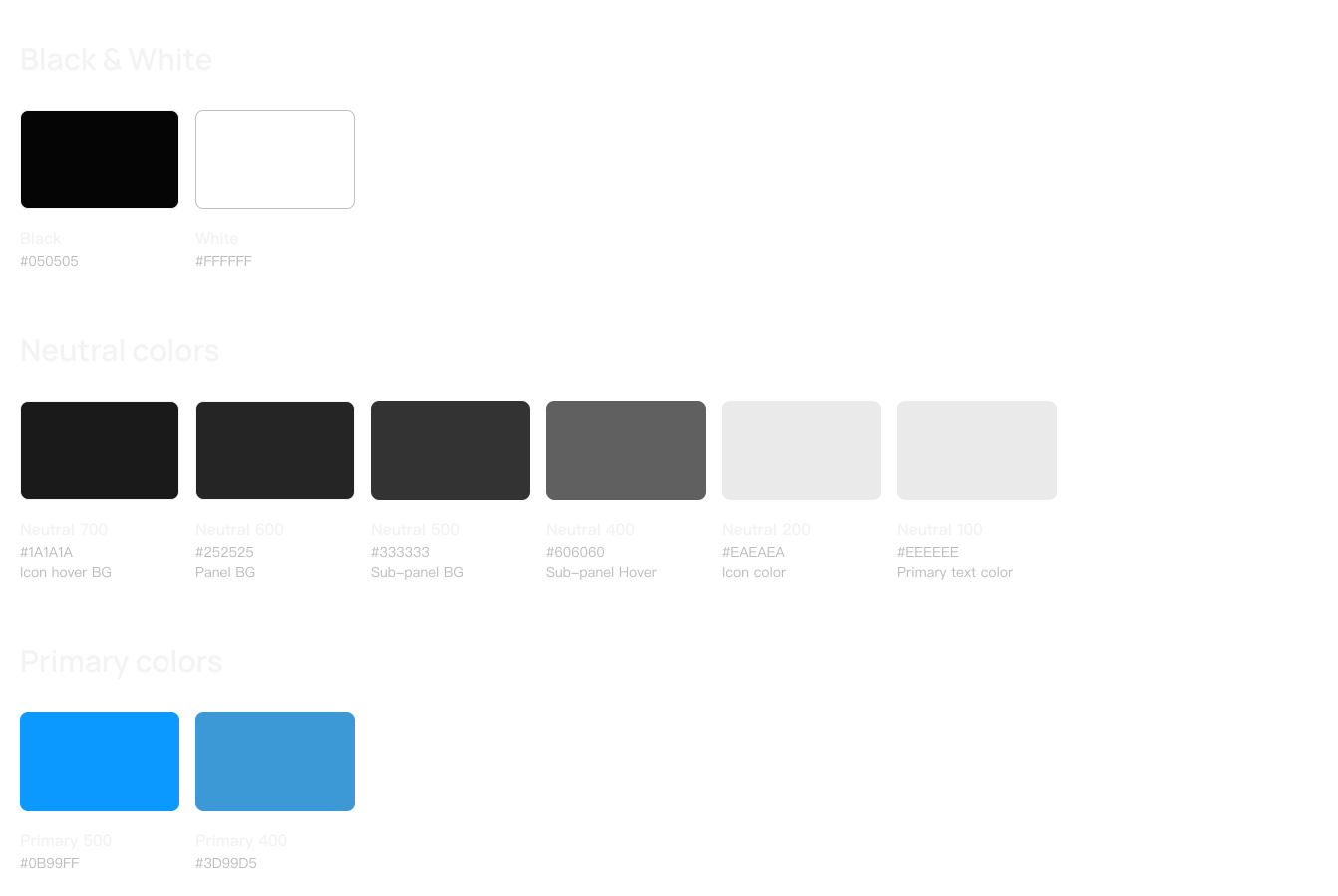
I retained the existing typography while redefining color hierarchy and component design. Colors follow a clear neutral / primary / B&W structure, and standardized component behavior keeps the UI scalable as the product grows.
Researchers reported that tasks they previously spent several minutes hunting for now took seconds. The accordion panel in particular was called out as a significant quality-of-life improvement for daily use.
- Structure before aesthetics: The interface's visual problems were symptoms of a deeper organizational issue. Fixing the layout logic first made every subsequent visual decision easier and more defensible.
- Categorization requires user validation: The annotation versus blinking split felt obvious in retrospect, but it only became clear after mapping actual user tasks rather than just looking at the feature list.
- A design system is a communication tool: Building shared color and component documentation changed the dynamic with developers from reactive ("why does this look different?") to proactive ("here is what we agreed on").